

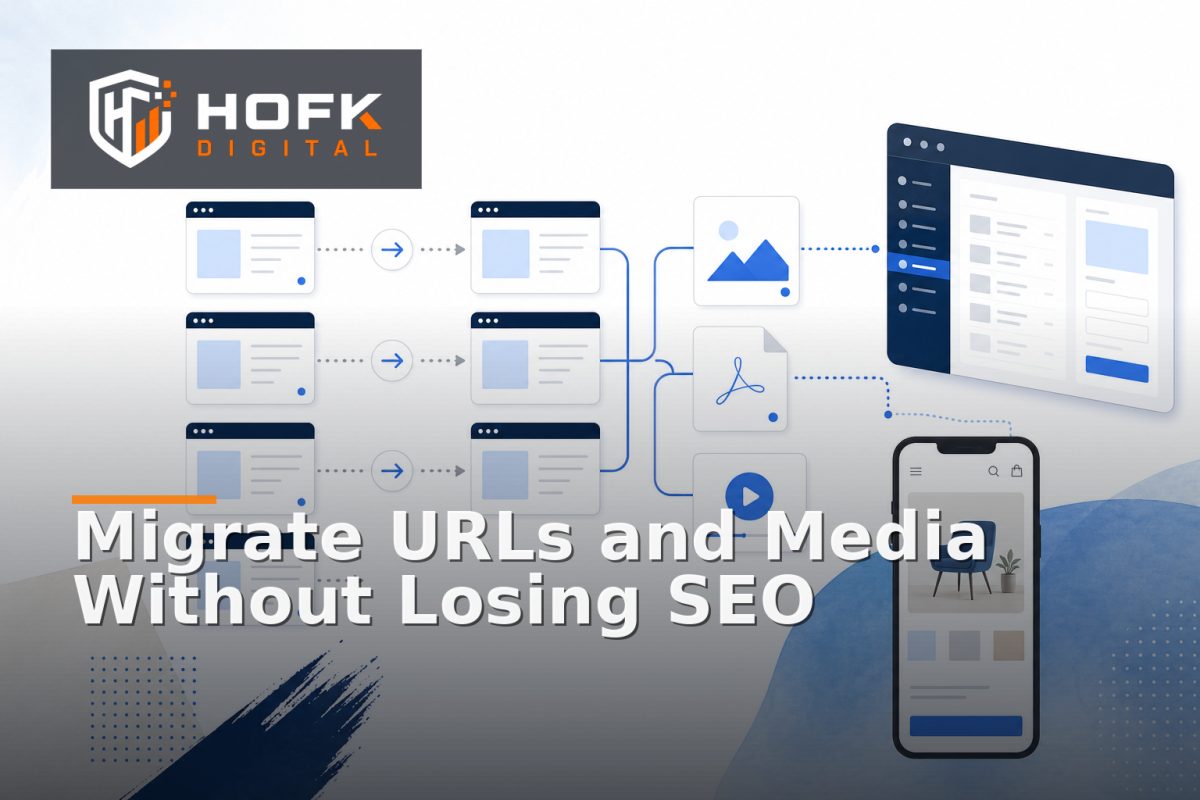
How to Plan a Website Media Migration Plan Alongside URL Changes
A website rebuild can preserve every important page URL and still launch with broken images, missing downloads or media references pointing back to the old CMS. It can also migrate every image successfully while changing page URLs in ways that weaken internal links, structured data and organic visibility.
That is why a website media migration plan should be designed alongside the URL migration, not treated as a separate content task. Page routes and media assets are connected through templates, content fields, CSS, feeds, email campaigns, social previews and search-engine discovery.
This guide explains how UK digital project leads and marketing managers can coordinate URL changes and media migration during a website rebuild or CMS migration. The focus is practical: mapping dependencies, deciding what moves, handling image URLs, assigning ownership and testing the combined result before launch.
Why URL and media migration need to be planned together
Page URLs and media files may be stored in different systems, but visitors experience them as one website. A service page may include images from a media library, downloadable PDFs, video embeds and Open Graph images. A product page may reference variant images in structured data, feeds and email templates.
Changing the page route without checking those dependencies can create:
- Images returning 404 errors after the rebuild
- CSS or JavaScript pointing to old asset paths
- Social sharing images displaying incorrectly
- Product feeds using missing or outdated image URLs
- PDF downloads redirecting to irrelevant destinations
- Broken internal references inside migrated CMS content
Conversely, moving media files without a URL strategy can create unnecessary redirects, duplicate assets or image URLs that search engines and connected platforms cannot access reliably.
Define the scope of the website media migration plan
Start by agreeing what counts as a media asset. Do not limit the exercise to images uploaded through the CMS. Depending on the website, the inventory may need to include:
- Product, service and category images
- Logos, icons and decorative interface assets
- PDFs, brochures, certificates and downloadable guides
- Video files, poster images and embedded media references
- Open Graph and social sharing images
- Images used in email templates or marketing automation
- Assets referenced in feeds, structured data or external integrations
Also distinguish between assets that are publicly accessible, assets behind account access and files that should not be migrated at all. A large media library often contains duplicates, old campaign material, unused crops and files with unclear ownership.
Use keep, replace, consolidate and retire decisions
Each asset should have a clear migration treatment:
- Keep: migrate the asset and preserve its relationship with the relevant content.
- Replace: use a new approved asset and record the old-to-new relationship.
- Consolidate: keep one preferred file where several duplicates exist.
- Retire: remove the asset because it is obsolete, inaccurate or no longer needed.
This makes CMS asset migration more manageable and reduces the temptation to move every historical file automatically.
Build a combined URL and asset inventory
A normal URL inventory should record the current page, its proposed destination and its migration decision. For a coordinated media migration, add the assets used by each important page or template.
Useful fields include:
- Current page URL and proposed new URL
- Page type, owner and commercial priority
- Current media URL or file reference
- Asset type, dimensions, format and file size
- Where the asset is used, such as hero, gallery, download or feed
- Proposed media URL after migration
- Whether a redirect or replacement is required
- Approval status and technical owner
For larger websites, use a dependency model rather than a flat spreadsheet alone. One asset may be used by several pages, while one page may depend on many assets. The project should be able to answer both questions: which assets will break if this URL changes, and which pages will break if this file is missing?
HOFK's guide to planning a CMS migration content inventory covers the wider decision process for keeping, improving, merging, redirecting or retiring content. The media layer should extend that work rather than sit outside it.
Decide whether media URLs should be preserved
Preserving existing media URLs is often the simplest option, but it is not always practical. The right decision depends on the new CMS, hosting structure, CDN, file organisation and long-term maintenance requirements.
Preserve an existing media URL where:
- The asset receives meaningful organic or referral traffic
- It is used by external websites, emails or documents
- The current path is stable and understandable
- Keeping it avoids unnecessary redirect complexity
A new media URL may be appropriate where the old structure is tied to a retiring platform, contains unstable parameters, exposes internal IDs or prevents a better asset model. If URLs change, document the old and new paths explicitly. Do not rely on a general wildcard redirect to solve every file type.
Plan website image URL redirects carefully
Website image URL redirects are not always handled in the same way as page redirects. A redirect to a relevant replacement image may be useful where the old file has external references. Redirecting every missing image to the homepage is rarely a good user or technical experience.
For each changed asset, decide whether to:
- Serve the asset at its original URL
- Redirect it to the matching new asset
- Return a controlled not-found response because no replacement exists
- Retain the old file temporarily while references are updated
Verify the correct treatment with your technical SEO owner and hosting team. Search-engine handling of image redirects, canonical signals and removed assets can vary by implementation, so do not assume that a blanket rule is safe.
Account for responsive image and asset transformations
A rebuild may change more than the file location. The new CMS or CDN may generate different crops, formats, widths or query parameters. That can be beneficial for performance, but it creates another migration dependency.
Document how the new system will handle:
- Desktop and mobile crops
- Responsive image widths and sizes
- WebP or other modern formats where supported
- Focal points and art-directed images
- Retina or high-density display variants
- Lazy loading and above-the-fold image priority
HOFK's article on responsive image art direction covers the decision between serving a different crop and serving a different size of the same composition. During migration, record those relationships so the new CMS does not silently replace an intentional mobile crop with a generic version.
Protect image migration SEO without treating images in isolation
Image migration SEO is not simply a matter of copying files and preserving alt text. Search visibility and usability can also be affected by image filenames, surrounding copy, structured data, captions, image sitemaps and the page that embeds the asset.
Before launch, check that:
- Important images remain attached to the correct page, product or variant
- Alt text is preserved or reviewed where the image's purpose has changed
- Product and article structured data references valid image URLs
- Image sitemaps or feed outputs use the new accessible URLs
- Image captions and nearby explanatory copy have not been lost
- Images are not blocked accidentally by robots, authentication or CDN rules
Do not assume that a technically valid image URL is enough. The asset must also be relevant to the page and accessible to the systems that depend on it.
Test CMS asset migration in stages
Do not wait until the new website is live to discover that the media model is incomplete. Use staged testing with representative assets and pages.
Test the source and destination relationship
Choose a sample containing simple images, galleries, mobile crops, downloads, variant assets and files with unusual names. Compare the source record with the migrated CMS record and the rendered front end.
Check:
- The asset exists at the intended destination
- The file opens with the expected content and dimensions
- The page or product relationship is correct
- Alternative text, captions and download labels are present
- The asset behaves correctly on mobile and desktop
Test changed URLs and redirects
For pages and assets with changed paths, test the old URL, redirect response and final destination. Look for redirect chains, mixed protocols, incorrect hostnames and query parameters that should not have survived.
Use crawl data where possible rather than checking only a handful of pages manually. HOFK's CMS migration template audit provides a useful related approach for checking templates, reusable components, responsive states and customer journeys before launch.
Run a coordinated pre-launch checklist
A combined migration review should give marketing, SEO, development and operations a shared go-live decision. Use a risk-based checklist rather than testing every URL equally.
- Priority page URLs have approved destinations
- Important media assets have approved migration treatments
- Old page and media URLs have been mapped where changes are unavoidable
- Templates reference the new asset model correctly
- Product, variant and feed images have been reconciled
- Mobile crops and responsive image behaviour have been tested
- Redirects do not create unnecessary chains
- Missing assets have an owner and a recovery route
- Forms, tracking, downloads and social previews have been checked
- Post-launch monitoring and rollback responsibilities are clear
For visual changes, HOFK's guidance on visual regression testing for website releases can help teams compare representative page states without treating every intentional redesign as a defect.
Monitor the first weeks after launch
Migration QA reduces risk, but it cannot reproduce every production condition. After launch, monitor page and asset responses, image loading, form submissions, feeds, organic landing pages and customer-service reports.
Useful signals include:
- 404s for old page or media paths
- Unexpected redirect volume or chains
- Broken images on priority templates
- Product feed warnings caused by image URLs
- Organic traffic changes on important migrated pages
- Pages with a sudden rise in missing or slow-loading assets
HOFK's SEO log file analysis guide explains how server evidence can reveal bot requests for redirects, errors and unexpected URL patterns. That can be particularly useful after a major rebuild.
Where HOFK can help
URL and media migration often crosses CMS configuration, ecommerce data, responsive templates, SEO, analytics, feeds and hosting. HOFK can help map the dependencies, improve the migration implementation, test critical journeys or add monitoring around the new website.
Relevant support may include full stack development, ecommerce, mobile-ready design and SEO & Adwords. The objective is not to migrate every file automatically. It is to make the new website accurate, maintainable and easier to verify.
Conclusion
A reliable website media migration plan treats images, downloads and other assets as connected parts of the URL migration. Start with a combined inventory, decide which paths should be preserved, map necessary website image URL redirects and test the CMS asset migration through the rendered website, feeds and connected systems.
Then monitor the live result. A successful rebuild is not just one where the new pages load. It is one where customers, search engines, marketing platforms and internal teams can still find the right content and media at the right URLs.
Frequently asked questions
What is a website media migration plan?
It is a documented plan for moving images, documents, videos and other media assets during a website rebuild, including ownership, URL changes, redirects, testing and post-launch monitoring.
Should media URLs stay the same during a CMS migration?
Keeping them can reduce unnecessary redirects, but it is not always practical. The decision should consider external references, SEO value, CMS structure, CDN behaviour and long-term maintenance.
What are website image URL redirects?
They are redirects from old image paths to matching replacement assets when media URLs change. They should be mapped deliberately rather than sending every missing image to a generic page.
How can image migration SEO be protected?
Keep important image-to-page relationships, review alt text, validate structured data and feeds, check accessibility, and monitor image URLs and errors after launch.
What should CMS asset migration testing include?
Test source-to-destination records, rendered pages, mobile and desktop crops, product variants, downloads, feeds, redirects and missing-asset handling using representative examples.