

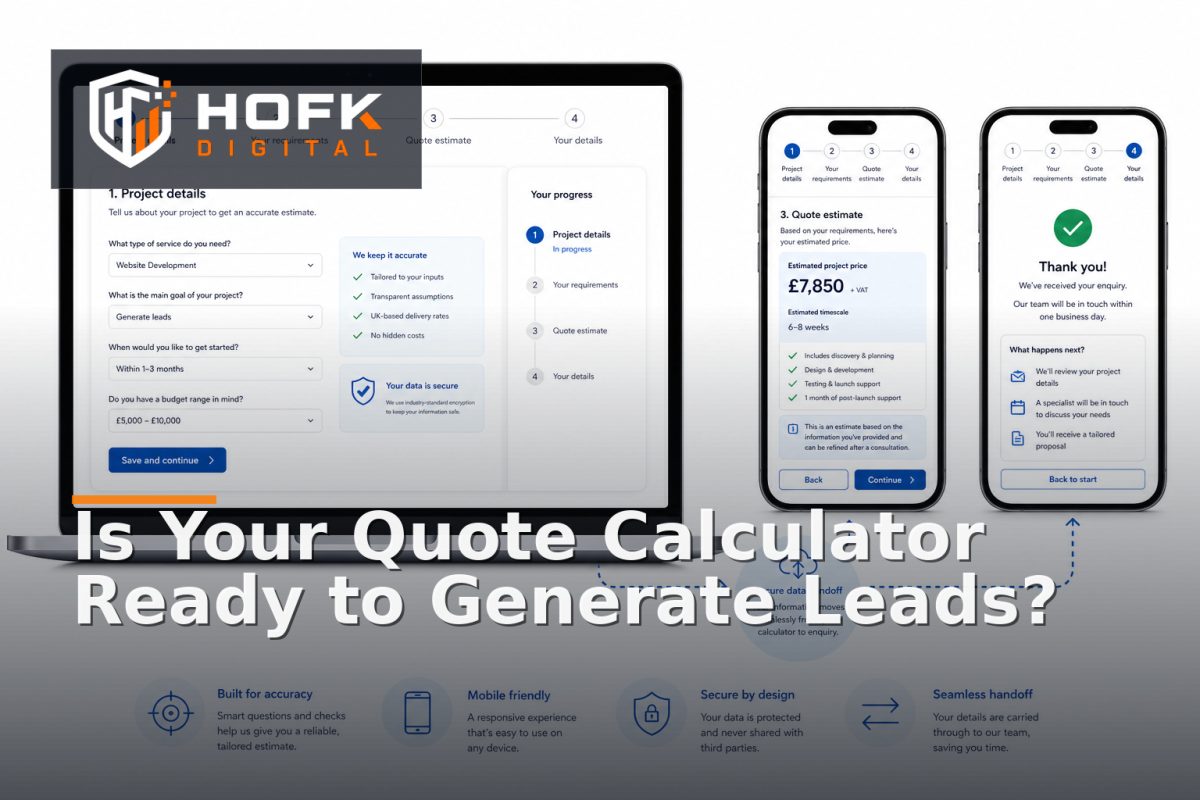
How to Test a Quote Calculator Before Using It for Lead Generation
A quote calculator can make a service website feel more useful, but it also creates a higher standard for accuracy. If the result is wrong, unclear or impossible for your team to follow up, the calculator may reduce trust rather than generate better enquiries.
That is why quote calculator conversion optimisation should begin with testing, not traffic. Before promoting an interactive quote form through SEO, Google Ads, email or social media, confirm that the calculations are commercially correct, the journey is easy to complete and every useful lead reaches the right person with the right context.
This guide explains how UK service businesses can test a quote calculator before relying on it for calculator lead generation.
Start by defining what the calculator is allowed to calculate
Before checking buttons and colours, document the commercial rules behind the calculator. A quote tool is only as reliable as the assumptions built into it.
Write down:
- Which services, products or packages are included.
- Which customer inputs affect the result.
- Which prices, rates, minimum charges or surcharges apply.
- Whether VAT, delivery, installation or other costs are included.
- Which cases require a manual review rather than an instant estimate.
- How long the result remains valid, if a validity period applies.
For example, a cleaning business may calculate a starting estimate from property size, frequency and service type, but require a manual review for specialist materials or unusual access. A web development business may use project options to produce an indicative range, while bespoke integrations need a conversation.
Make those boundaries clear internally and, where relevant, to the visitor. An estimate should not appear more precise than the information supplied supports.
Test calculation accuracy with known scenarios
The first technical test is simple: use inputs where you already know the expected result. Create a test table with representative scenarios and compare the calculator output against an approved manual calculation or pricing source.
Include:
- A basic, low-complexity request.
- A typical customer scenario.
- A larger or higher-value request.
- A request involving multiple services or options.
- A scenario with a discount, surcharge or minimum charge.
- A request close to a pricing threshold.
Record the input values, expected result, displayed result and pass or fail decision. Do not rely on someone checking the calculator from memory. A written test set makes later changes easier to review.
Check rounding, units and boundaries
Many calculator errors occur at the edges rather than in the central formula. Check whether the tool handles:
- Decimal values and rounding.
- Different units, such as metres, square metres, hours or days.
- Minimum and maximum quantities.
- Zero values where they are valid.
- Blank, incomplete or unavailable inputs.
- Values just below and just above a pricing threshold.
A calculation that is correct for 10 units may be wrong for 10.5. A discount that should apply above £1,000 may incorrectly apply at exactly £1,000 or fail to apply until £1,001. These details should be tested deliberately.
Review the result for commercial clarity
A correct result can still be a poor customer experience. The visitor needs to understand what the figure means and what happens next.
Check whether the result explains:
- What has been included.
- What has not been included.
- Whether the figure is an estimate, starting price or formal quotation.
- Whether VAT or other charges are included.
- Which assumptions influenced the result.
- What the visitor should do next.
A result such as “Your estimated price is £2,450” may be too vague. A stronger version might explain that the estimate is based on the selected service, quantity and delivery area, and that a member of the team will confirm the final scope.
This is central to quote tool UX. The calculator should reduce uncertainty without creating a false promise.
Test the interactive quote form as a journey
Do not test each field in isolation. Run the complete journey from the first question to the final result and lead submission.
- Open the calculator in a fresh browser session.
- Complete the first question without looking for help.
- Continue through the normal path.
- Change an earlier answer and check whether later questions update correctly.
- Review the calculated result.
- Submit contact details or request the full quote.
- Check the confirmation state and follow-up instructions.
Changing an earlier answer is particularly important. Conditional questions may not refresh, old options may remain in the result, or the calculator may retain a price from the previous path.
Check conditional logic carefully
Conditional logic can make an interactive quote form shorter and more relevant, but it creates extra states to test. For every conditional question, check:
- Whether the correct next question appears.
- Whether irrelevant questions remain hidden.
- Whether hidden answers are removed from the calculation.
- Whether changing the parent answer resets dependent fields.
- Whether the user understands why a new question has appeared.
A hidden field should not continue affecting the price unless that behaviour is intentional and visible.
Test validation and recovery from mistakes
Visitors will make mistakes, skip questions and change their minds. A calculator that only works when completed perfectly is not ready for lead generation.
Test:
- Submitting with required fields empty.
- Entering an invalid number or format.
- Selecting conflicting options.
- Using the back button between steps.
- Refreshing the page part-way through.
- Correcting an answer after an error.
Error messages should explain what needs to be corrected. “Invalid input” is not enough. “Enter a number between 1 and 20” gives the visitor a clear route forward.
Preserve valid answers where possible. Making someone restart after one mistake creates unnecessary friction and can reduce the quality of the eventual enquiry.
Check mobile quote tool UX on real devices
Service businesses should test calculators on phones, not only in a desktop browser preview. A multi-step calculator can become difficult to use when the keyboard, dropdowns, sticky elements and error messages compete for limited screen space.
On mobile, check:
- Whether the first question is clear without excessive scrolling.
- Whether buttons and answer controls are easy to tap.
- Whether the keyboard covers the active field or next button.
- Whether progress indicators remain understandable.
- Whether the result fits the screen without awkward wrapping.
- Whether the form remains usable in portrait orientation.
Also test a smaller phone and a larger modern handset if possible. A layout that works on one device can still create overlap or excessive scrolling on another. HOFK’s mobile-ready design service is relevant where responsive behaviour needs technical improvement rather than just content changes.
Measure the steps that matter for calculator lead generation
A final submission event will tell you that someone completed the calculator. It will not show where other visitors stopped. For useful quote calculator conversion optimisation, track the meaningful stages of the journey.
Depending on the implementation, these may include:
- Calculator viewed.
- Calculator started.
- Step completed.
- Validation error shown.
- Result viewed.
- Contact details started.
- Lead submitted.
- Confirmation received.
Compare completion rates between steps, devices, campaigns and calculator versions where the data volume supports it. A high number of result views but few contact submissions may indicate that the result is not persuasive, the next step is unclear or the lead form asks for too much.
Be careful with the definition of a conversion. A button click is not necessarily a completed lead. Where possible, confirm that the submission reached the CRM or operational inbox successfully.
Verify the lead handoff before sending traffic
One of the most damaging calculator failures is a correct customer-facing result followed by a poor internal handoff. Test the full record created after submission.
Confirm that the lead includes:
- Customer name and contact details.
- All meaningful calculator answers.
- The calculated result and currency.
- Any assumptions, exclusions or notes.
- Campaign and landing-page source data where available.
- A timestamp and unique reference.
Then check where the lead goes. Is it assigned to the correct person? Does the email contain enough context? Can the sales or operations team distinguish an indicative estimate from a confirmed quotation?
If the team has to ask the customer to repeat every answer, the calculator has not completed its operational job. This is where full stack development, automation or CRM integration may be needed. HOFK’s full stack development support can be relevant when the calculator crosses the website, CRM and internal workflow.
Test tracking and source data separately
If the calculator will receive Google Ads or other paid traffic, verify that campaign information survives the journey. Test tagged visits, consent choices, redirects and mobile sessions where relevant.
Check that:
- Analytics records the calculator start and completion events.
- Campaign parameters are retained where the setup requires them.
- The lead record receives source information consistently.
- Duplicate submissions are not counted as separate leads accidentally.
- The confirmation state cannot be refreshed to create repeated conversions.
HOFK’s guide on building a lead attribution model for service businesses covers the wider challenge of connecting marketing touchpoints with qualified opportunities.
Run a controlled launch review
Before promoting the calculator widely, agree what would make you pause the launch. A practical decision rule might be:
- Pass: calculations match approved scenarios, the journey works on desktop and mobile, and leads arrive with usable context.
- Review: minor usability issues exist but do not affect calculation, submission or follow-up.
- Block: a material price is wrong, an answer is lost, a lead fails to arrive, or the result makes an unsupported promise.
Start with a limited traffic source or a small internal test group if the calculator is new. Review real submissions and sales feedback before increasing spend. HOFK’s SEO & Adwords service page is relevant where paid traffic and landing-page performance need to be reviewed together.
Quote calculator conversion optimisation checklist
- Pricing rules and assumptions are documented.
- Known scenarios match approved expected results.
- Rounding, units and threshold boundaries are tested.
- Conditional questions update correctly.
- Validation messages explain how to recover.
- The result clearly states what it includes and excludes.
- The calculator works on real mobile devices.
- Step-level events identify meaningful drop-off.
- Lead records include answers, result and source context.
- Duplicate submissions and confirmation refreshes are controlled.
- Launch-blocking defects have been agreed in advance.
Conclusion
Effective quote calculator conversion optimisation is not about adding more questions or making the result appear more precise. It is about proving that the calculation is accurate, the quote tool UX is straightforward and the resulting lead is useful to the business.
Start with documented pricing rules, test normal and boundary scenarios, run the full interactive quote form on mobile, measure each important step and verify the handoff into your sales or operations process. Only then should you rely on the calculator for calculator lead generation through SEO, Google Ads or other campaigns.
If your calculator needs stronger integrations, responsive behaviour, tracking or workflow automation, HOFK can help with ecommerce, full stack development, mobile-ready design and SEO & Adwords support.
Frequently asked questions
How do I test a quote calculator before launch?
Test approved normal and boundary scenarios, check conditional logic and validation, run the journey on mobile, verify analytics and confirm that submitted leads reach the right internal workflow.
What should an interactive quote form show in its result?
It should explain the estimated figure, what is included, important assumptions, exclusions, whether VAT applies and what the customer should do next.
How can a quote calculator improve lead generation?
It can give visitors a useful result in exchange for relevant contact details, but only if the calculation is credible, the form is easy to complete and the follow-up process uses the submitted context.
What are common quote tool UX problems?
Common problems include unclear questions, poor mobile controls, hidden conditional logic, vague errors, lost answers and results that appear more precise than the available information supports.
Should every calculator result create a sales lead?
Not necessarily. Decide whether a visitor must submit contact details before seeing an estimate, after seeing it, or only when they request a confirmed quotation. The right approach depends on the service and sales process.